Multi-Screen Group Discussion Smart Classroom Solution
Connects teacher host machines with student group slave devices to form a multi-screen collaborative network in classrooms. Supports wireless screen sharing from groups, broadcasting content to the main display, retrieving group content, and synchronized coordination between primary and secondary screens—designed for group discussion-based learning.
Get Full Solution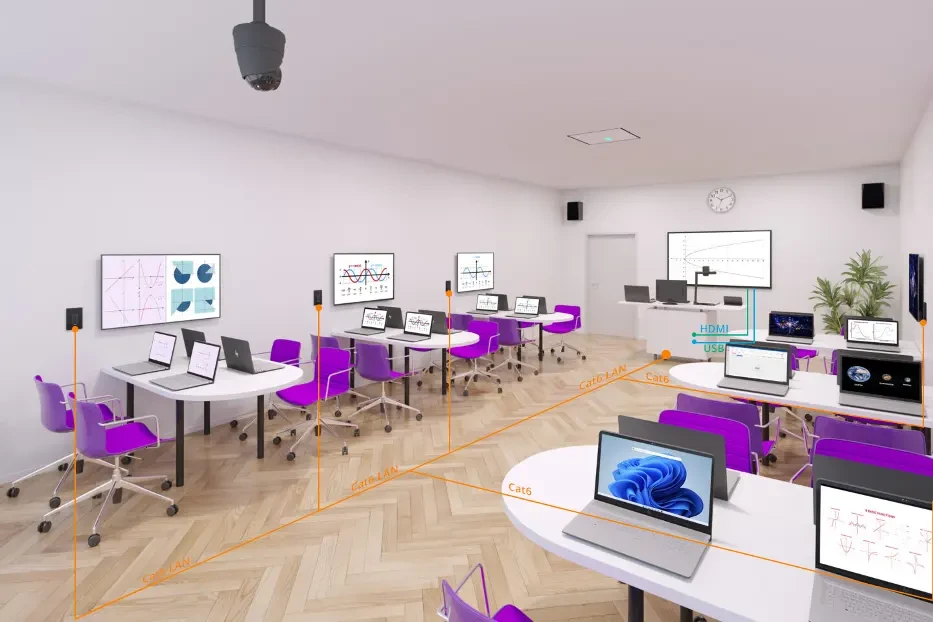
Multi-Screen Smart Classroom Environment Components
Configure the teacher's main and secondary displays at the classroom frontend: the main display presents lecture content, while the secondary display shows content and control panels to the teacher. Place group screens evenly across the center of the classroom, with one companion device assigned to each learning group.
The teacher host and all student group devices connect to a single switch via wired network. The switch links to an AP or router to form the classroom LAN. Screen sharing, broadcasting, and device calls are handled entirely within the classroom LAN, without relying on external bandwidth.
Teacher Dashboard
Connect to a TV, projector, or all-in-one device via Projector HDMI to present main content.
Teacher Secondary Display
Connect a monitor via HDMI to the podium display for content viewing and control.
Group Display
Each learning group has a display driven by the HDMI output from the group's slave unit.
Touch Control
When the display device is a touchscreen, connect to the touch port via the smart terminal's USB port for touch control.
Six Multi-Screen Collaboration Capabilities
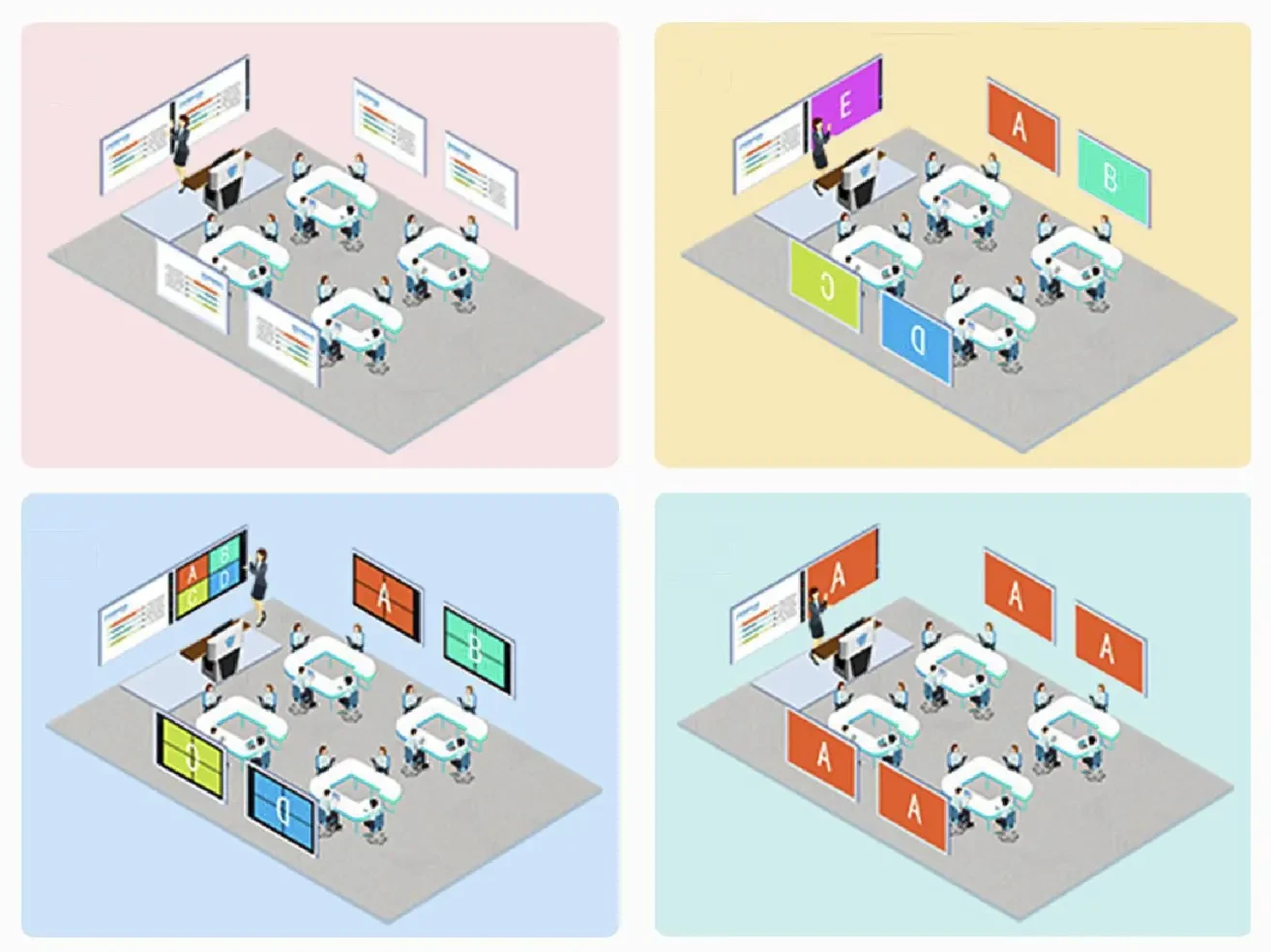
The group discussion teaching solution covers the full workflow—from individual screen sharing to in-group content sharing—with one-click operations.
Wireless Screen Sharing: Teacher and Group Views
The teacher's station and each learning group have a display screen, allowing the teacher and students to wirelessly share content from computers or mobile devices.
Main Screen Content Broadcast
Presenter can broadcast the main screen content to other group screens with one click, sharing the same presentation materials.
Cast group screen to main screen
Presenters can display content from one or more group screens on the main display for presentation or comparison.
Broadcast group screen to other group screens
First, pull content from a group to the main screen, then push it to other group screens for demonstration.
Teacher Mode: Dual-Screen Sync
The main screen displays only content, while the secondary screen shows both content and a control bar. Teachers can manage multi-screen operations by simply facing their student groups.
Teacher: Multi-Source Simultaneous Display
The main screen displays multiple video sources simultaneously—including wired input, wireless screen sharing, and network input from sub-screens—and supports customizable layouts.
Usage in the Classroom
Before the session begins, the presenter broadcasts the content displayed on the main screen at the front of the classroom to all learning group screens, introducing the problem to be solved or the exercise to be completed.
During class, each group shares content on its group screen for discussion. The presenter can display a specific group's content on the main classroom screen to highlight that group's progress.
Near the end, the presenter shares individual group content with other groups for feedback and suggestions. These operations rely on direct, simple video streaming and multi-screen collaboration capabilities.
System Connection and Deployment
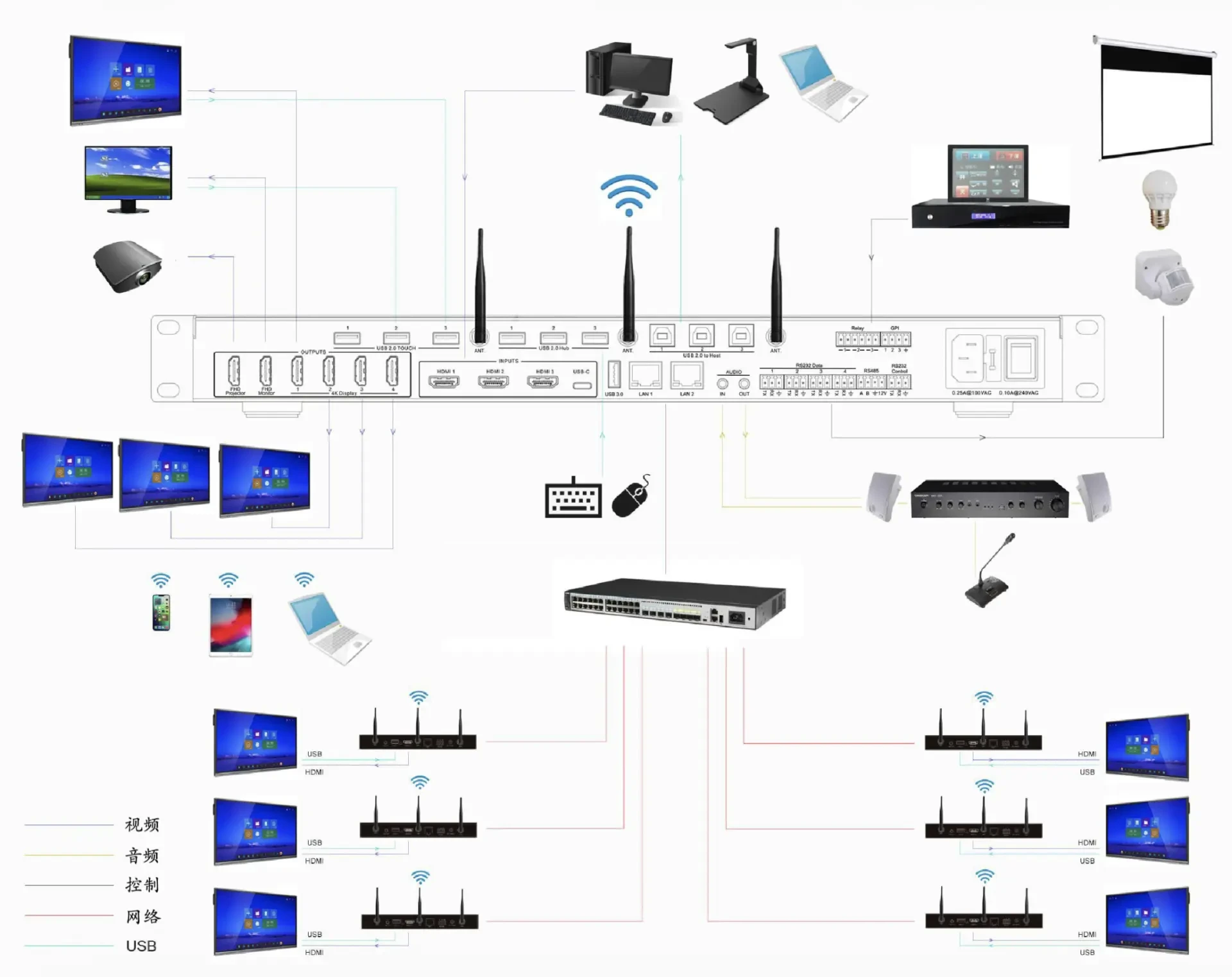
The teacher station connects its Projector HDMI port to the main display and its Monitor HDMI port to the lectern control screen. Each student group's device connects via HDMI cable to its respective group display.
All smart terminals connect via wired network to a single switch, which then connects to an AP or router to form an interconnected classroom LAN.
Main Screen Output
Connect projector via HDMI directly to TV, projector, or all-in-one touch screen.
Auxiliary Screen Output
Monitor HDMI connection to podium display or all-in-one touch screen, with a dedicated side menu.
Group Screen Output
Group slave HDMI output to group display.
Network Configuration
Wired access switch for terminals; uplinks to APs or routers to form a LAN.
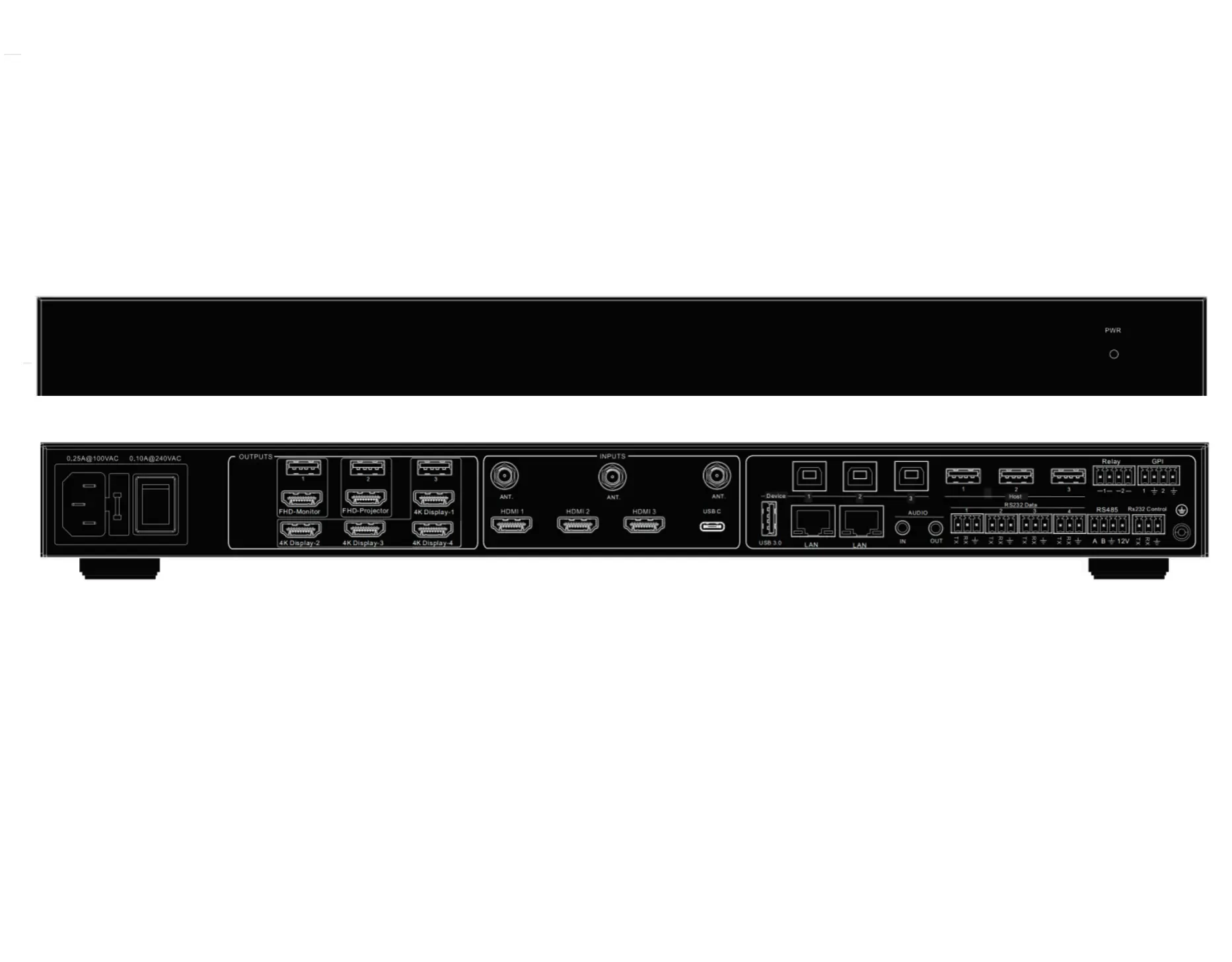
Teacher Host MS-M80 Capabilities
The teacher station host provides 4 wired inputs for connecting multiple video sources with free switching, and supports up to 6 HDMI outputs.
Multi-wire Input
4 wired input ports to connect multiple video sources with seamless switching.
Secondary Screen Control Interface
The HDMI monitor output is designed for podium displays and all-in-one touch devices, featuring an independent side menu.
Wireless screen sharing
Supports AirPlay, Miracast, Chromecast, and client-to-transmitter modes.
USB KVM
When multiple computers are connected, the podium monitor or all-in-one touch screen can remotely control them.
Multi-source simultaneous display
Wired, wireless, and network inputs can be displayed simultaneously on the large screen, supporting up to four channels.
Multi-screen Collaboration
Transmits and receives IP data streams via the LAN port to/from the group screen, supporting bidirectional annotation.
Content Broadcast
Broadcast the main screen to all group screens, or broadcast a specific group screen's content to other group screens.
Group call
Push content from one or more sub-screens to the main screen with one click.
Secondary grouping
Multiple group screens can be further grouped; screens within the same group display identical content.
Drag screen
In multi-screen mode, drag to swap content between screens.
Screen Layout
Built-in screen layouts for various teaching scenarios.
Teaching Tools
Provides whiteboard, annotation, and screenshot features.
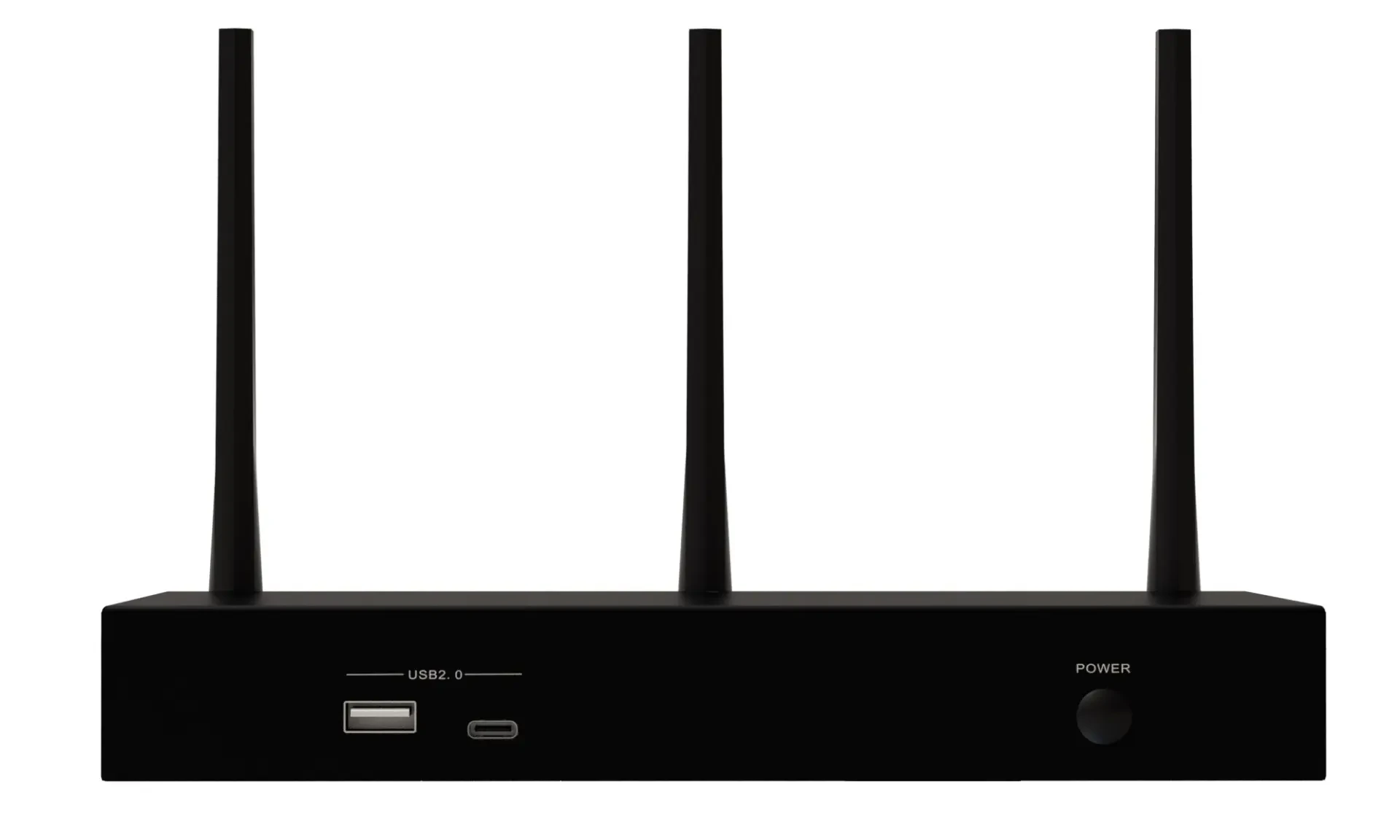
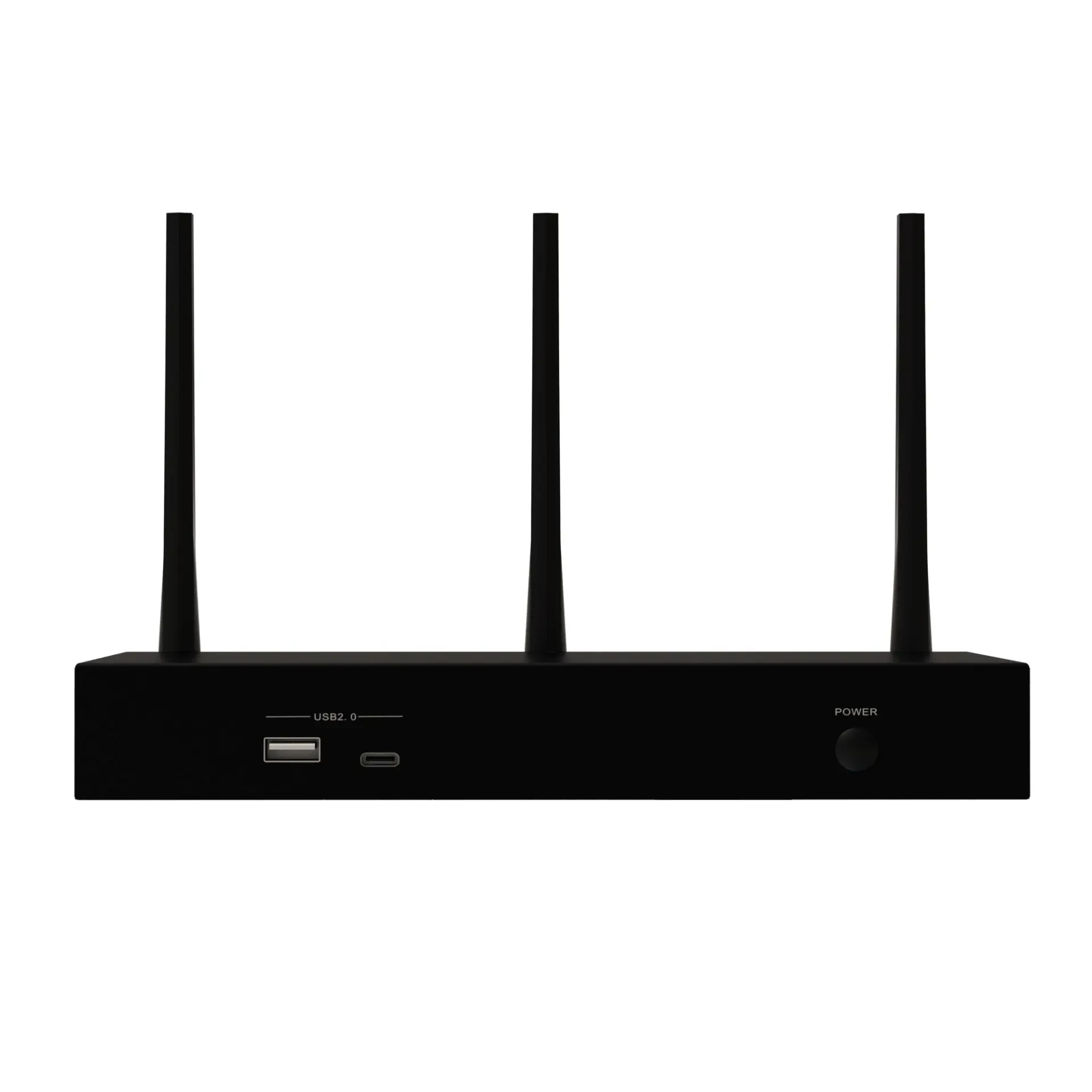
Subgroup Slave WD-3000E Capability
The group slave manages the group screen display and collaboration. It exchanges IP data streams with the teacher master via LAN ports to enable two-way annotation, while supporting internal screen sharing and layout control within the group.
Wireless screen sharing
Supports screen sharing via AirPlay, Miracast, Chromecast, and client-to-transmitter modes.
Multi-screen Collaboration
Transmits IP data streams between the host display and provides bidirectional annotations.
Drag screen
In multi-screen mode, drag to swap content between screens.
Screen Layout
Multiple layouts available, optimized for discussions and presentations.
Teaching Tools
Built-in whiteboard, annotation, and screenshot features.
Associate Products with Solution
The following products form the core hardware and platform capabilities of this solution.
Need to match the right products and solutions for your project?
Share your application scenarios, user needs, and network environment. Our technical team will provide selection recommendations, design solutions, and schedule prototype testing.